Table of Contents
This article describes how you can get started with the Jomic source code in order to contribute to it. In particular, it explains how to setup your development environment.
The jomic-developers mailing list is the preferred place to discuss issues related to development.
To contact me directly, use my SourceForge user page.
The source code is stored in a Subversion (SVN) repository. Subversion is an open source tool for version management of files. There are many tools to access information stored in repositories. This section explains how to do it using the command line client or Eclipse. For more information on Subversion, start at http://subversion.tigris.org/.
Many platforms already include the svn command line client. Provided it is installed, proceed as follows:
Open
/Application/Utilities/Terminal.Change to some directory where you want Jomic to be located, for example cd /Users/me/Programs.
Check out the current version: svn checkout https://jomic.svn.sourceforge.net/svnroot/jomic/trunk/jomic jomic
After that, there should be a directory
/Users/me/Programs/jomic/ containing a current
copy of all files in the repository. Thus for example,
Jomic.java would be in
/Users/me/Programs/jomic/source/net/sf/jomic/Jomic.java.
The remaining examples assume this path.
For more details on the Jomic Subversion repository, refer to http://sourceforge.net/svn/?group_id=103788.
In order for some shell scripts to work properly, set the
environment variable JOMIC_HOME to this directory. In
bash, you can do this by adding the following line
to your .profile:
export JOMIC_HOME=/Users/me/Programs/jomic
I also found the following aliases pretty useful to quickly go to this directory:
      alias cdj="cd $JOMIC_HOME"
alias cdjs="cd $JOMIC_HOME/source/net/sf/jomic"Jomic is developed using Eclipse, an open source IDE available from http://eclipse.org/. The current version as of this writing is 3.2.2, which does not have built-in support for Subversion. Instead, you need a plug-in such as Subclipse. Once setup, perform the following steps to sync the Jomic project from the repository:
Start Eclipse.
Use → → .
Select the wizard → .
Enable "Create new a repository location". Click "Next".
Set "Url" to "https://jomic.svn.sourceforge.net/svnroot/jomic". Click "Next".
Select the folder to be checked out: "trunk/jomic". Click "Finish".
Once the checkout is complete, the project most likely contains compile errors. Refer to the section on building and running the application using eclipse on how to fix them.
The repository already contains almost everything you need to build Jomic, including Java libraries, DTDs, DocBook transformations and so on.
In order to create every target of the build process, you need a couple of tools:
ant, a Java build tool available from http://ant.apache.org/. To enable image operations during the build, add JAI as external ant library. An easy way to achieve this is:
mkdir -p ~/.ant/lib
cp $JOMIC_HOME/lib/*jai* ~/.ant/lib/
Python 2.6 or any later 2.x release, available from http://www.python.org/download/. Python 3.x will not work.
lxml, a Python library to process XML data, available from http://pypi.python.org/pypi/lxml/. If you are using a package manager for Linux or Mac OS X, it most likely already has a package available. Otherwise the easiest way to get it working is to use a pre build binary from the its PyPI page.
png2ico, a command line utility to convert PNG images to Windows icons, available from http://www.winterdrache.de/freeware/png2ico/.
You can omit some of these if for instance you do not want to build the documentation or Windows installer.
After the checkout, a setup step has to be performed before all the other ant targets work:
ant setup
This has to be done only once, though it will not break anything if performed multiple times. Mostly this target extracts a few archives so the data inside can be accessed during the build.
After syncing with the repositoy, the easiest way to build the
application is using ant, available from http://ant.apache.org/. All required external JARs are
already available in $JOMIC_HOME/lib.
To create an initial build, run ant jomic.jar jomic-test.jar jomic-help.jar.
To run the application with the (official, utterly boring) standard test comic, use ant run.
To get a list what else you can do with ant, use ant -projecthelp .
If you want to play rough, you can do it all by yourself. I'm not going to explain the details, but here are some hints.
There are a couple of properties you should pass to the JVM when launching Jomic from your developer environment:
jomic.home is the above mentioned directory, for example jomic.home=/Users/me/Programs/jomic
jomic.unrar specifies where the unrar executable is located, for example jomic.unrar=/sw/bin/unrar. Note that you need at least version 3.20
jomic.delay is the delay in milliseconds that GUI components should be visible during automatic tests, for example jomic.delay=1000 means one second. This is optional, the default is "too fast to see much".
If you did not obtain the source code using the Eclipse SVN wizard, you first have to import it as a project in Eclipse:
Start Eclipse
Import
$JOMIC_HOME/.projectusing → and selecting "Existing Project into Workspace".
Most likely you will get some compile errors, which will be fixed with the following steps:
Enable assertions:
Use → .
Select "Java Compiler"
Enable "Use project settings"
Set "Compiler compliance level" to "1.4".
Disable "Use default compliance settings".
Set "Generate .class file compatibility" to "1.4".
Set "Source compatibility" to "1.4".
Set "Report 'assert' as identifier" to "Error".
Define a Run menu item to launch Jomic:
Use → .
Select "Java Application" and click "New".
Set "Main class" to "net.sf.jomic.Jomic".
Set "Program arguments" to "${resource_loc:/jomic/tests/net/sf/jomic/tests/data/test.cbz}"
Set "VM arguments" to "-enableassertions -Djomic.home=${project_loc} -Djomic.unrar=${project_loc}/releases/mac_os_x/Jomic.app/Contents/Resources/unrar"
Click "Run" to launch Jomic and open the (official, utterly boring) standard test comic.
After that, define a Run menu item to launch all the test cases. Assuming that the Run dialog is still open:
Select "Junit" and click "New".
Set "Main class" to "net.sf.jomic.Jomic".
Select "Run all tests in the selected project, package or source folder", and set it to "jomic".
Set "VM arguments" to "-enableassertions -Djomic.home=${project_loc} -Djomic.unrar=${project_loc}/releases/mac_os_x/Jomic.app/Contents/Resources/unrar"
Click "Run" to launch the tests. .
To build the Web Start release, basically you have to run
ant release-webstart. However, in order to be able to
sign the JARs, you need to create a proper key. Because this is a
self-certified key anyway, there is no need to keep the password secret,
so build.xml already includes it: webstart
To create a proper key and store it in the keystore
jomic under the alias
webstart", run keytool -genkey -keystore
jomic -alias webstart -keypass webstart -storepass webstart.
This results in a couple of questions like your name and location. These
data are stored in the key and will be shown when the user runs Jomic
via Web Start the first time.
For more details on creating the key, refer to the security chapter in the Java Tutorial.
To build the Debian package you need a few additional tools. If you are using Ubuntu, all of them are available using the included package manager:
lintian
fakeroot
After installation, run: ant release-debian
Currently the build will issue a few warnings while preparing the manpage and continue.
The finished package can be found in
releases/debian/jomic_*.deb.
To run the test suite from the command line, run ant test. Depending on the speed of your machine, this might take a few minutes to complete. Watch the terminal for test results.
To create a test coverag report, run ant
coverage. The report ends up in
$JOMIC_HOME/site/coverage/index.html and summarizes
which part of the code have not been executed during the tests.
Some background: Jomic's tests use the popular JUnit framework, for details see http://www.junit.org/. GUI testing is based on Jemmy, for details see http://jemmy.netbeans.org/. The coverage report is the result of Emma, for details see http://emma.sourceforge.net/.
To add your own tests, simply extend Junit's
TestCase as usual. Take a look at
TestTools, it features some methods to easily
obtain test data, in particular, comic archives. For GUI tests, extend
JomicApplicationTestCase and implement your own
runTest(). For a simple example on how to do
this, see MenuGoTest.
My goals for Jomic are:
Provide a working Mac OS X comic browser that reasonably reacts to errors, "simply just works" after dragging it to
/Applications, at least attempts to provide an acceptable user experience for Mac OS X, and yet is easy to port to other platforms.Implement it in Java and play around with various technologies and tools related to quality assurance, the build process, XML and XSL stuff, and general pick up some new skills. Nevertheless, avoid all the headache of Java 1.1. things.
Keep the code clean and leggible, maintain a reasonably useful documentation to everything.
Hang around in the comic scene a bit, as it always looked interesting from a distance.
A religious note: Jomic ended up as a Swing application because of the following reasons:
Apple has done a great job on implementing the Aqua look and feel.
There's a lot of documentation and tutorials around.
It works with most platforms supporting Java.
SWT does not seem to suck significantly less. (Just trolling. He he.)
Speaking in terms of Java packages, Jomic is organized this way:
net.sf.jomic.tools - Various tools not depending on other packages (except net.sf.jomic.logging, which not really is a package). Interesting players are
FileArchiveandImageTools.net.sf.jomic.ui - Things related to the Jomic user interface. Note that net.sf.jomic.tools also features some independant, low-level UI components.
net.sf.jomic.comic - All things comic.
net.sf.jomic.common - Some important classes that would have caused package dependancy cycles if placed anywhere else. Most notably,
Settings, which contains the user preferences.net.sf.jomic.tests - Various tests.
net.sf.wraplog - Logging package to wrap around another logging package without explicitely depending on it. The implementation used currently calls Log4j 1.2.x to do the actual logging. Log4j 1.3 will include its own, cleaner wrapper (named UGLI). Eventually, this package should be refactored away.
Jomic uses the popular model-view-controller pattern. The most
important players in this respect are ComicModel,
ComicView, and JomicFrame.
The first two are explained in more detail below, the naming already
should make their roles obvious.
JomicFrame is the controller. It listens
for commands, which it receives via stock Swing
ActionEvents.
Commands can be assigned to menu items, keys, toolbar buttons and
so on. A list of possible commands understood by
JomicFrame can be found in
Commands. Many of these commands change the state
of the CommicView, for example the page number or
the way it displays the current page.
Internally, comics are represented by a
ComicModel. This is a pretty simple class that
mostly contains a collection of
ComicImage.
ComicImage again is pretty simple and wraps
a single image extracted from the comic book archive. It mostly contains
methods to query certain properties of the image, such as
getWidth(),
getHeight(), or
hasError(). A particular interesting one is
isDoublePage(): it decides if the image
contains one or two pages. This is important for properly rendering the
comic if the user enabled → .
ComicViewis a JPanel
capable of visualizing a ComicModel. It has to
deal with three problems:
How to map page numbers to
ComicImages?How to decide whether to show one or two images?
How to render images?
Mapping page numbers is relatively simple: if the
ComicImage.isDoublePage() is false, increase
the current page number by one. If it is true, increase the page number
by two. Internally, page numbers go from 0 to ComicView.getPageCount() -
1. For the user, page numbers range from 1 to ComicView.getPageCount().
So some care has to be taken to increment page numbers displayed to the
user, and decrement page numbers specified by the user. Nevertheless,
all this is no rocket science.
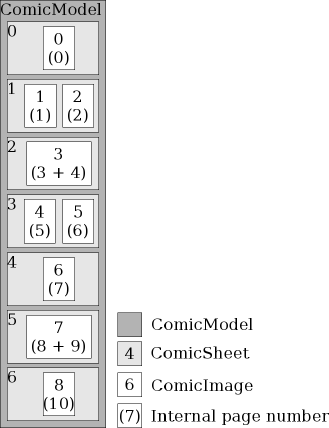
Deciding whether to show one or two images is a lot more
difficult. ComicSheet helps with that: a sheet
holds one or two images using the rules listed below. Figure 1, “Deciding whether to show one or two images” shows examples for
applications of these rules.
The first image has it own sheet, because it is the front page (ComicSheet 0).
If
ComicImage.isDoublePage()is true, the image has its own sheet (ComicSheet 2 and 5).If the last image starts at a new sheet, it has its own sheet (ComicSheet 6).
If the first image of a sheet is a single page image, but the next image is a double page image, it has its own sheet because the next image would not fit anymore (ComicSheet 4).
To render the images, Jomic uses a rather ugly approach. While Sun
released a powerful library for imaging (JAI), they could not get their
act together and include a Swing component with it that actually allows
to display such an image. Still, they included the undocumented
com.sun.media.jai.widget.DisplayJAI. On the long
run, this is no satisfactory solutiuon. One of the JAI examples
containes IconJAI, which displays a JAI image in
an Icon. A bugfixed and cleaned up version of it
can be found in
net.sf.jomic.tools.IconJAI.
If you want to contribute and look for a place to start, the following should be useful:
The report about todo comments found in the Java source code. These are typcally small cleanups and fixes easy to understand and carry out.
The trackers at SourceForge, in particular the feature requests and open bugs.
While Jomic is written in Java and essentially should run on all platforms without changes, there are some functionalities I haven't found a way to do them in "100% Pure Java" while retaining a satisfactory level of usability:
Opening web pages in your preferred browser. See
SystemTools.openURL().Unraring archives. Java only has built-in support for ZIP, so unraring is done by calling unrar using
Runtime.exec(). SeeFileArchive. Currently Jomic needs version 3.20 of unrar because it uses the -lb to list the archive. Older versions only have -l. To support such versions, you need to parse the line and find the filename in it.A few minor things like system-dependant standard paths for cache files and so on. Look for todo comments with "fix portability".
Jomic needs Java 1.4 and ImageIO, which are not available for some platforms, for example Mac OS Classic and handhelds. To add support for such platforms,you at least will have to resolve the following issues:
Use Swing and Collections for Java 1.1. (You might have to google a bit for them, but they still are available on the net.)
Get rid of ImageIO. Java 1.1 has built in support for GIF and JPEG, so you could replace the JAI panels in ComicView by Icon instances. To support other image formats, several packages exist, for example Image/J.
Strip assertions.
To make things easier for everyone involved, you should follow the following guidelines. If you don't, life goes on, but probably someone else will have to fix the issues later.
Before submitting a patch or commiting a change, run ant reformat. This reformats the code according to the project formatting style. The result is a formatting conforming to the Sun guidelines, with the exception that lines can be 100 characters long (because the disco era is long past).
Pretty Printer Pitfalls
JRefactory's pretty printer used by ant reformat is difficult to convince that it should not add totally useless default comments such as "@param hugo Description of parameter hugo". Most of them should be gone by now, but some are caused by bugs in JRefactory. Those bugs have been reported but not fixed yet, so ignore them for now.
Some more surprises are in the way JRefactory treats comments. As a general rule, use
/** header comment */
to document classes, methods, and instance variables. Use
// inline comment
to documents everything else. The pretty printer reformats comments, so use HTML in header comments and give an own line to inline comments. There are also a few bugs in the pretty printer that violently remove comments, but if you stick to these recommendations, you should not encounter most of them.
From time to time, run ant checkstyle. This creates a report that checks the code for various stylistic issues, and generates a report in
$JOMIC_HOME/site/checkstyle-report.html. CheckStyle issue open at the time of the last release are available from http://jomic.sourceforge.net/checkstyle-report.html.If you are using Eclipse, you can also perform these checks while typing: simple install the eclipse CheckStyle plugin and import
$JOMIC_HOME/settings/checkstyle.xml.The checks are based on the default "Sun Checks", with some modifications to make the code easier to maintain and make it harder to shoot yourself in the foot. If you come from a C/C++ background, you might hate it. If you ever coded in Eiffel, there is nothing new here.
Use meaningful names, avoid the need for comments. CheckStyle lets you omit almost all comments with the following exceptions:
All classes must have a comment shortly describing what the class represents (and not what it "does")
All packages must have a
package.html. It should contain at least one short sentence summarizing the contents of the package. As a template, use$JOMIC_HOME/xml/package.html.Document open issues, known bugs/limitations and unclean solutions with todo comments, for example:
// TODO: use HashMap instead of array
Do not use the undocumented (but popular) @todo.
Run ant todo to get a report about all todo comments found in
$JOMIC_HOME/site/todo-report.html. Todo comments open at the time of the last release are available from http://jomic.sourceforge.net/todo-report.html.
If you declare new exceptions, make them extend
RuntimeException, never useException. I mean it.Use abbrevations only if you save at least 4 letters. "dir" for directory is ok, "src" for source is braindead.
Funtions and loops must have 1 exit only. Use "return" only as last statement of a method. Do not use "break" at all; instead, use for example a "while" loops with state variable to abort it, and give the state variable a meaningful name such as
cancelled.Due performance considerations, all calls to
logger.debug()andlogger.info()must be wrapped inside anif (logger.isXXXEnabled()) {...};logger.warn/error/fatal()won't need this.Clearly mark non-portable code with
// TODO: fix portability
Also consider adding some notes in the section on " Porting to additional platforms".
Some parts of Jomic are localized and ready to be translated to other languages. The implementation uses the usual machanisms provided by Java. This section gives a overview on how to work with them, and how to add support for additonal languages. For more details on Java localization, start with the internationalization thread in the Java Tutorial.
To add another language, perform the following steps:
Download the most current
bundle.propertiesfrom: http://jomic.svn.sourceforge.net/viewvc/*checkout*/jomic/trunk/jomic/source/net/sf/jomic/tools/bundle.properties.Copy it to
bundle_*.properties, where "*" stands for the ISO language code you want to translate to. For example, "de" means German.Change the English text snipplets right of the "=" to a text that means the same in your language.
The loalized texts are stored in property files which are loaded
in Java ResourceBundles during runtime. The
default file with the English texts is called
bundle.properties, files for other languages are
named bundle_*.properties, where "*" stands for a
2-letter language code, and an optional 2-letter country code, separated
with an underscore (_). For example, a bundle storing generic German
texts would be called bundle_de.properties. A
bundle with German texts with taking specialities of Austria into
account would be called
bundle_de_AT.properties.
You can find theses files in the repository at
/jomic/source/net/sf/common/bundle*.properties. You
can browse this directory using the Subversion web interface at http://jomic.svn.sourceforge.net/viewvc/jomic/trunk/jomic/source/net/sf/jomic/tools/.
To download the most current version of a file, click its name and, on
the resulting page, on the first link named "download" near the top. In
most cases, you will only need the English
bundle.properties.
The structure of these files is very simple: they consist of lines of the pattern "key = value", where key is the abstract name of the text snipplet under which it will be looked up by Jomic, for example "buttons.cancel". Value is the actual (language dependent) text to use in the user interface, for example, "Cancel" in English or "Abbrechen" in German.
For the above example, the file
bundle.properties contains this line:
buttons.cancel=Cancel
The file
bundle_de.properties defines the same key, but
assigns a different value to it:
buttons.cancel=Abbrechen
The "de" is the ISO-639 language code for German as specified. For other languages, see http://www.ics.uci.edu/pub/ietf/http/related/iso639.txt.
If a Java application is running with the locale set to "de", it
attempty to resolve any localization keys by looking them up in
bundle_de.properties. If it cannot find the key
there, is also looks it up in bundle.properties.
This is nice because you will get something leggible on the screen if a
single key is missing from the properties file. This is also a bit
confusing because parts of the application will use different
languages.
The only file maintained by the developer is
bundle.properties, and to some extent
bundle_de.properties. If you added another
bundle_*.properties, it will not be updated if new
text snipplets are required by updated Versions of Jomic. As described
above, if a key is missing, Jomic automatically reverts to the English
text, which will be a bit confusing for the end user.
To avoid this, you should update your
bundle_*.properties from time to time. As generally
only a few text snipplets where added, there is no point in
re-translating the file again. Instead, you should use an editor
optimized for editing loalization property files. One such editor is
Zaval Java Resource Editor, available from http://zaval.org/products/jrc-editor/. In particular it
helps to find the entries that are availbele in
bundle.properties but are missing in
bundle_*.properties.
(In case you are working with the repository, you do not need to dowload and install the editor. Simply run ant edit-bundle to open all bundle*.properties in it.)
Once you created or updated a
bundle*.propertiesfile, you can submit it for
inclusion in future releases of Jomic. The preferred way is to use the
SourceForge patch tracker:
Open the patch tracker at http://sourceforge.net/tracker/?atid=635945&group_id=103788&func=browse.
Click "Submit new"
In the form, set category to "Localization".
Enter a summary, for example "Japanese Localization"
Enable the checkmark right to the text "Check to Upload and Attach a File"
Click the "Browse" button, and select your file (for example
bundles_jp.properties).Enter a description, for exampe "Japanese Localization".
Click the "Submit" button.
Using the tracker makes sure that everybody knows which localizations are currently worked on, and avoids duplicate effort. However, if you really can not figure out the patch tracker, you can also email your file to me.
The documentation is stored in
$JOMIC_HOME/site/. Most of it is written in DocBook
XML, a set of tags for describing books, articles, and other prose
documents, particularly technical documentation. For more information
about DocBook, see for example http://www.docbook.org/, in particular http://docbook.org/tdg/en/html/docbook.html. Using
DocBook/XSL, the DocBook source can be transformed into other formats
such as XHTML, PDF, or JavaHelp. For details about DocBook/XSL, see
http://www.sagehill.net/docbookxsl/.
In practice, this is not all that complicated as most of the stuff is already setup to "just work" by using some simple ant rules. The only thing you need to install first ist tidy, a tool to check, fix, and reformat HTML, XHTML, and XML (and thus DocBook) files. It is available from http://tidy.sourceforge.net/.
Now you can edit the source documents, and create the documentation with ant:
Edit
$JOMIC_HOME/site/user-guide.xml, and run ant user-guide to update the user guide in$JOMIC_HOME/site/user-guide.htmlEdit
$JOMIC_HOME/site/developer-guide.xml, and run ant developer-guide to update the developer guide in$JOMIC_HOME/site/developer-guide.htmlEdit
$JOMIC_HOME/site/index.xml, and run ant site-index to update your local copy of the homepage in$JOMIC_HOME/site/index.html
I'm not aware of any useful and free DocBook editor, so I suggest you use an XML editor, for example JEdit with its XML plugin, available from http://www.jedit.org/. This at least gives you syntax coloring.
Screenshots are stored in
$JOMIC_HOME/site/images/ in PNG or JFIF/JPEG files.
Thumbnails are located in $JOMIC_HOME/site/thumbs/,
and always use PNG format.
Images used during runtime can be found in
$JOMIC_HOME/source/net/sf/jomic/images/, and are
automatically included in the jomic.jar (This
seemingly strange location is nice for developers because they can load
such images using the Java class loaders). Because Java cannot handle
PNG for icons, these images have to use GIFs (or JFIF/JPEG).
Figures are stored in $JOMIC_HOME/images/.
You can use OpenOffice to edit them, see http://www.openoffice.org/. Conversion to other formats
has to be done using OpenOffice's export function. (Yeah, this sucks.
Eventually this should all be SVG. Just gimme an easy to install,
non-braindead editor for that.)
Multi-layered images are stored in
$JOMIC_HOME/images/ and use PhotoShop's PSD format
or whatever format the person who did it considered useful.
Releasing a new version for Jomic comes down to the following steps:
Reset source code: ant clean
Build release archives: ant jomic.jar jomic-test.jar jomic-help.jar release-osx
Run tests, generate site and reports: ant site site.zip
Copy
site.zipto web server:scp releases/site.zip roskakori@shell.sourceforge.net:/home/groups/j/jo/jomic/htdocs
ssh roskakori@shell.sourceforge.net
sh update_jomic_site.sh
Copy possibly updated JARs to the Web Start directory: scp -p site/webstart/?????.jar roskakori@shell.sourceforge.net:/home/groups/j/jo/jomic/htdocs/webstart
Add a tag to the repository: svn copy -m "Added tag for version 0.9.??." https://jomic.svn.sourceforge.net/svnroot/jomic/trunk/jomic https://jomic.svn.sourceforge.net/svnroot/jomic/tags/jomic-0.9.??